


Before you leave
Your morning, in one screen
You’re up before the light. Open the app and the weather, the spray window, the watchouts and today’s work are already there, so you know the day before you reach the first field.
ZarSage · One farm record
Open ZarSage on your phone in the field. Sign in on a computer with the same account and your fields are already there.
Or add it to ChatGPT or Claude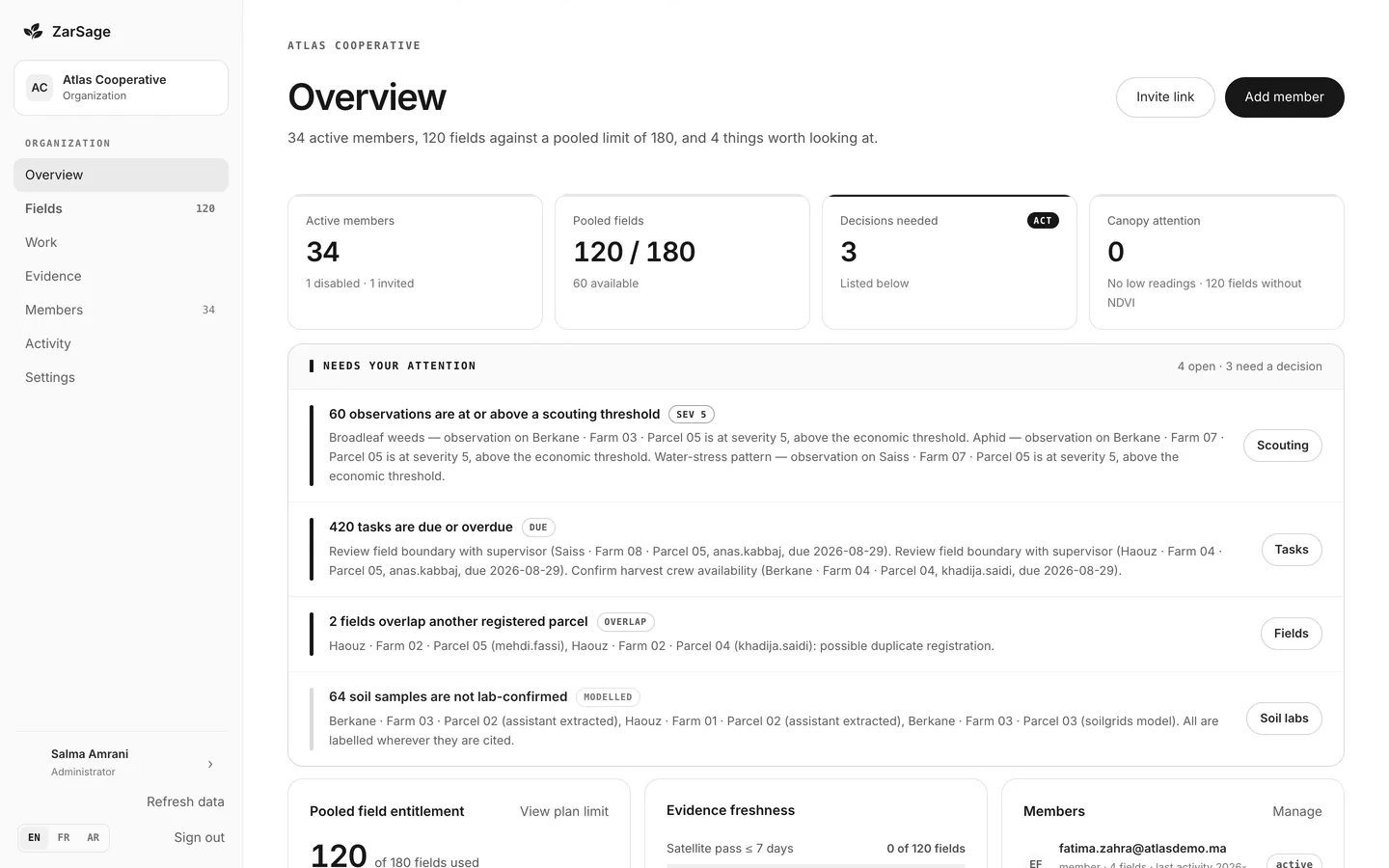
Your morning, in one screenAnswer it from the fieldEvery field and its cycleNews for your crop and countryWorks with no signalConnect it to your assistant
Console shown with a demo organisation; names are fictional.
How it fits together
Your phone, the web console and your assistant work from the same farm record, so a note made in the row is on the desk the moment it uploads.

Illustrative demo screens from separate sessions.
Meet Zari
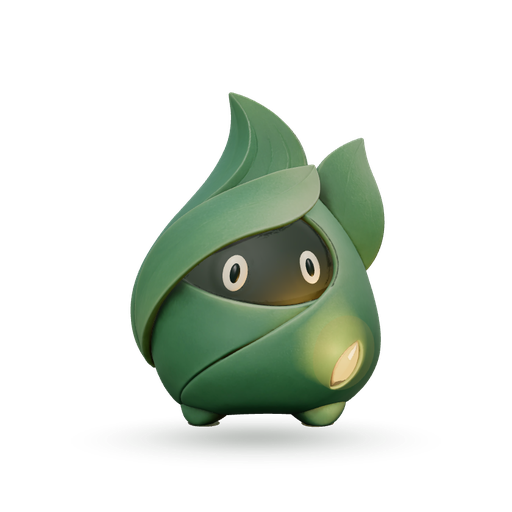
Zari is who you meet when you open ZarSage Mobile. It keeps an eye on every field and sits with you through the morning briefing: your fields, the forecast and the day’s work, read aloud. This one is real: press play.
Hold off on any spraying or fertilizer in North Field today, because about thirty-two millimetres of rain is expected within forty-eight hours and applications could wash off. North Field had thirty-one millimetres overnight, while Trial Plots A and B each had seventeen. Don’t irrigate Trial Plot B this week. After the heavier rain, check the low spots in Trial Plots A and B for standing water or runoff.
One light, four states
Not checked yet: Zari has not assessed this field.
Not checked yet: Zari has not assessed this field.Looking good: the latest check found nothing to act on.Warning: a check found something to watch, or the spray window is poor.Action needed: a check found something to deal with soon.What Zari does
Now on your phone
ZarSage fits the farm’s work into the moments you already have. Explore what that looks like across a day in the field.
You’re up before the light. Open the app and the weather, the spray window, the watchouts and today’s work are already there, so you know the day before you reach the first field.
Sign in on a computer and the morning is already there: members, fields against the plan, and what needs a decision across every field.
A recommendation needs a fact only you know, like which nitrogen source is on hand. The question waits in Attention: answer it, or approve the write, standing in the row with no signal.
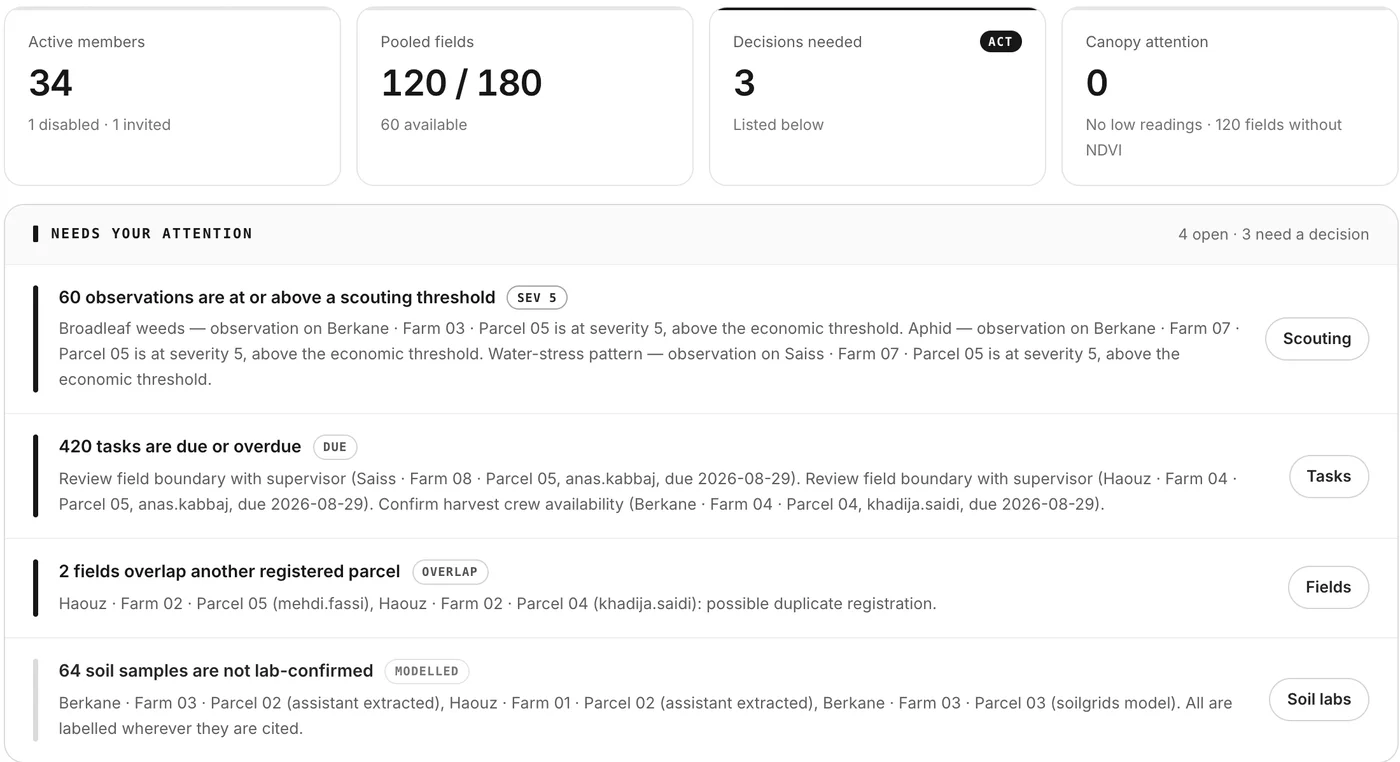
Scouting thresholds, overdue work, overlapping parcels and unconfirmed soil results rise to the top, each with the fields and evidence behind it.
Open the field you’re standing in: its boundary, crop stage, soil status and every application, linked to that field and nothing else.
A daily digest of what matters to what you grow and where you grow it. Each story carries its sources and reads fine offline.
Log the spray, the scouting note, the hours. It’s saved on the phone and uploads in order when you’re back in range; nothing waits on the network.
Open ZarSage Connect in the app, copy the endpoint into ChatGPT or Claude, and see exactly what the assistant may read and write before it reads anything.
Web console · Same account
Sign in at the desk with the account you use in the app. Your fields are already there, and so is everything that feeds them.
01Connectors
Sensor readings, shared drives, satellite passes, weather and soil models land in the same record, on the right field, so nobody retypes anything.
Sources
ZarSage farm recordEvidence · Permissions · HistoryPaid organizations include unlimited team members. Fields, hectares, uploads and AI allowances are shared across your organization. See Pricing
Run a co-op or an NGO? See how we work with youZarSage Connect
Ask naturally in ChatGPT or Claude. ZarSage finds the permitted farm context, attaches the evidence, and brings a grounded answer back to the conversation.
One farm record. Any assistant.
Your farm record, available wherever you work with AI
 ZarSage farm recordPersistent · source-linked · permissioned
Set up ZarSage Connect
Choose ChatGPT or Claude for the setup steps. Availability depends on your account and workspace settings.
Recommended for individual farmers. Claude supports custom connectors on every plan. Free accounts can add one; Team and Enterprise owners must add ZarSage for their organization first.
https://app-api.zarsage.ai/v1/mcpNew subscribers start with a 7-day free trial on one field. Plans are sized by farm, up to 300 hectares. Assistant availability and permissions follow each host's account and workspace settings. Stuck on a step? Email us and a person will help.
Start with a real job
The assistant will retrieve what ZarSage already knows, ask only for missing information, and request confirmation before it writes.
Set up my farm in ZarSage. Start with my field and its exact boundary, then save any soil lab results, resource notes, and source links I provide. Ask only for information that is still missing, and show me each change before saving it.
Analyze my field named [field name]. Use its crop and work history, soil evidence, recent and forecast weather, and available satellite observations. Show the evidence, sources, confidence, and data gaps, using charts, maps, tables, or images where they help.
Help me plan the next crop cycle for [field name]. Use ZarSage's farm evidence and current crop-suitability data, ask about any constraints that materially change the plan, and present a complete draft with tasks and reasoning before asking me to confirm it.
Trust the answer
Your assistant handles the conversation and presentation. ZarSage protects the farm record, permissions, source evidence, and execution receipts behind it.
Important claims include timestamps, units, provenance, confidence, and known data gaps.
Write tools require separate permission. Some workflows enforce a server-side confirmation step; your assistant may also ask before acting.
Each account and organization is checked on every request; files remain private and tenant-scoped.
Sign in with Google, review the requested scopes, and disconnect the assistant whenever you choose.
Co-ops and NGOs
Your team plans in the web console. Field staff and farmers work on their phones, even with no signal. Everyone reads and writes the same farm record.
Send us your farm size, or how many farmers you work with, and we will set it up with you.
Talk to usQuestions
No. Zari is the character in the app. The morning briefing is read by the ZarSage voice, and Zari moves with it; it never speaks for you or to you.
Yes. Log work in the field; it is saved on the phone and uploads in order when you are back in range. Today, your fields and the digest stay readable offline.
iPhone and Android. Tap Get the app and follow the steps for your phone. Every plan starts with a 7-day free trial on one field.
ChatGPT and Claude. You add the ZarSage server URL as a connector; what each host allows depends on your account and workspace settings. The setup steps above walk through both.
No. Write tools need separate permission, some workflows enforce a server-side confirmation, and a change Zari or the assistant proposes waits for your approval.
New subscribers start with a 7-day free trial on one field. Plans are sized by farm, up to 300 hectares; see Pricing for the ladder.
Yes. The web console opens in any browser on a computer. Sign in with the same Google or email account as the app and your fields, documents and plan are already there.
The web console runs every farm you support from one screen, while field staff and farmers work on their phones. Every plan covers your team; for more than 300 hectares, write to hello@zarsage.ai.
Take Zari with you
ZarSage Mobile is on iPhone and Android with a 7-day free trial on one field, and the web console opens with the same account. Or start by adding your farm record to ChatGPT or Claude.